Red Hat: The Linux File System
The Linux directory tree from scratch: "everything is a file", the root and the FHS, file types, inodes, links, /proc, /dev/null, df, du and find.
Series · Red Hat
- 1. Red Hat: What Is Red Hat and How Does It Relate to Linux?
- 2. Red Hat: Installing RHEL Step by Step
- 3. Red Hat: The Terminal and the Shell
- 4. Red Hat: The Linux File System
In the third part we learned to get around the terminal: pwd for where we are, ls for what’s there, cd for moving about. But knowing how to walk in a city is not the same as knowing its map. Today we draw Linux’s map: which folder holds what, what the “root directory” is, how a file’s real identity is stored, and why in Linux everything really is a file.
In Part 1 we said “in Linux everything is under /”; in Part 2 we saw from afar how Anaconda partitioned the disk. Now we step into that tree and walk it branch by branch. Don’t worry, you won’t get lost: by the end this tree will feel logical, not memorized.
Everything is a file
Let’s start here, because all of Linux’s logic rests on it. This principle, inherited from Unix, says: you can reach almost everything in the system through a single, uniform interface, that is, like a file.
Plain text and programs are files, fine. But here’s the beautiful part:
- Directories are files too; special files that hold the list of names inside them.
- Devices (disk, keyboard, sound card) appear as files under
/dev. Writing to the disk is like writing to a file. - Running processes and the kernel’s state are read like files under
/procand/sys. You “read” how full memory is withcat /proc/meminfo.
The practical benefit is enormous: learn a handful of commands (ls, cat, cp, echo) and you can manage your documents, your settings, your hardware and the system’s live state with those same commands. Where Windows needs a separate tool for each, in Linux they all work with the same “read from a file, write to a file” idea. We’ll see concrete examples by the end.
The top of the tree: the root directory
Everything starts at the root directory; its symbol is a single slash: /. It’s the very top of the tree, and all paths branch from it. Let’s look at the top with ls -l /:
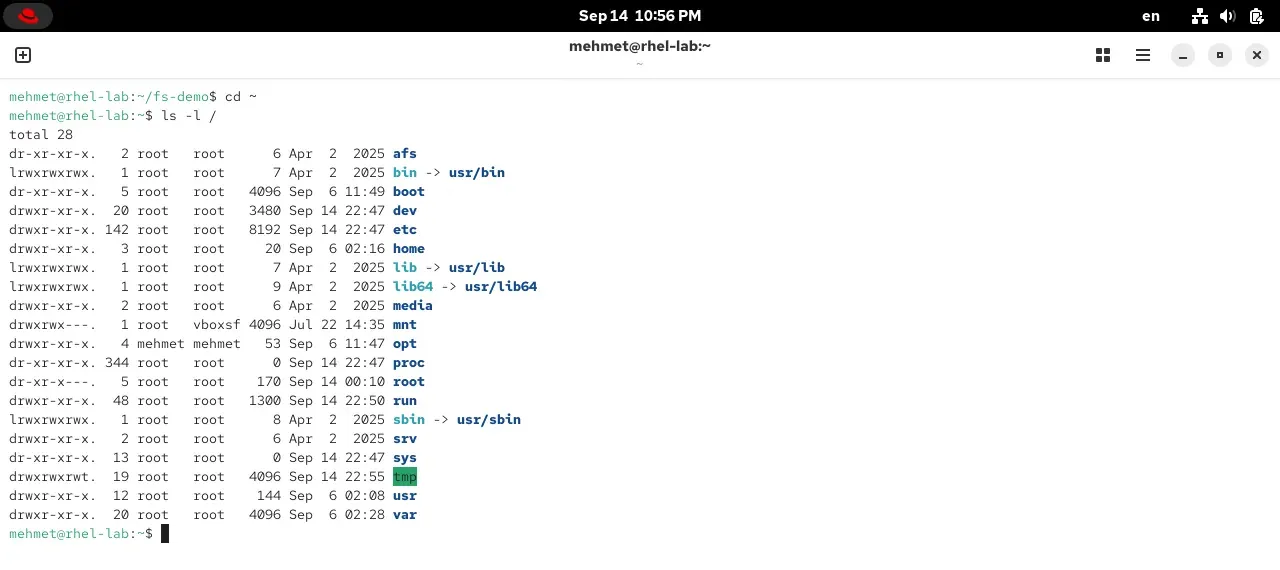
There’s something interesting in the output: the bin, lib, lib64 and sbin lines start with an l and have an -> usr/bin next to them. These are symbolic links (shortcuts); the real folders are now gathered under /usr, and the old names remain as shortcuts for compatibility. You’ll also notice a few folders like afs at the very top of the list; they exist on every RHEL but are usually empty. afs is a mount point reserved for the AFS (Andrew File System) distributed file system; if the OpenAFS client isn’t installed it just sits empty, no need to delete it. You can also picture how the shell resolves a path you type:
flowchart TD
    A["A path: /home/mehmet/report.txt"] --> B["start at / the root"]
    B --> C["go into home"]
    C --> D["go into mehmet"]
    D --> E["find the file report.txt"]
An absolute path (one starting with /) is always resolved from the root, step by step. Remember the absolute/relative distinction from Part 3: a relative path starts from where you are, an absolute path always from the root.
A tour, folder by folder: the FHS
So what does each of these folders under the root do? Good news: this layout isn’t random, it’s standardized by the FHS (Filesystem Hierarchy Standard). That’s why whichever Linux you sit down at, you find the same thing in the same place.
| Folder | What it holds |
|---|---|
/etc | The system’s config files (plain text). The /etc/hostname, /etc/shells from Part 3 were here. |
/home | Users’ personal folders: /home/mehmet. Your ~ directory. |
/usr | The real home of installed programs and libraries. Most commands live under /usr/bin. |
/var | Constantly changing data: logs (/var/log), mail, databases, cache. |
/boot | The kernel and boot files (vmlinuz, initramfs, GRUB). The boot chain from Part 2. |
/dev | Devices as files (/dev/sda the disk, /dev/null the black hole). |
/proc, /sys | The live state of the kernel and processes (not on disk, produced in memory). |
/tmp | Temporary files; usually cleared on reboot. Everyone can write here. |
/root | The root user’s home directory (separate, not under /home; watch out). |
/opt | Extra software installed outside the distribution’s package system. |
/run | Runtime state (sockets, PID files). |
/mnt, /media | Folders for manually and automatically mounted disks/USB sticks. |
Let’s also see the big picture of the tree (the most important branches):
flowchart TD
    R["/ root"] --> A["/etc · config"]
    R --> B["/home · users"]
    R --> C["/usr · programs"]
    R --> D["/var · logs, changing data"]
    R --> E["/boot · kernel"]
    R --> F["/dev, /proc, /sys · devices and kernel"]
Into /usr and /var
Let’s look more closely at two big branches, because they fill most of the disk (we saw them at the top of du).

/usris the “read-only” world of installed software:/usr/binuser commands (1545 on screen!),/usr/sbinadmin commands,/usr/liband/usr/lib64shared libraries,/usr/sharearchitecture-independent data (man pages, icons, fonts),/usr/localsoftware you install by hand outside the package manager. Remember the/bin -> usr/binshortcut from Part 3: everything really gathered here./var(“variable”) is data that constantly grows and shrinks:/var/logsystem logs (the first place to look when something breaks),/var/cachecache,/var/spoolprinter and mail queues,/var/libprograms’ persistent state (databases live here). When a server warns “disk full”, the first suspect is often/var/log.
/boot: where the kernel lives
Let’s look closely at one branch, because you know it from Part 2. /boot holds everything the computer needs while starting up:
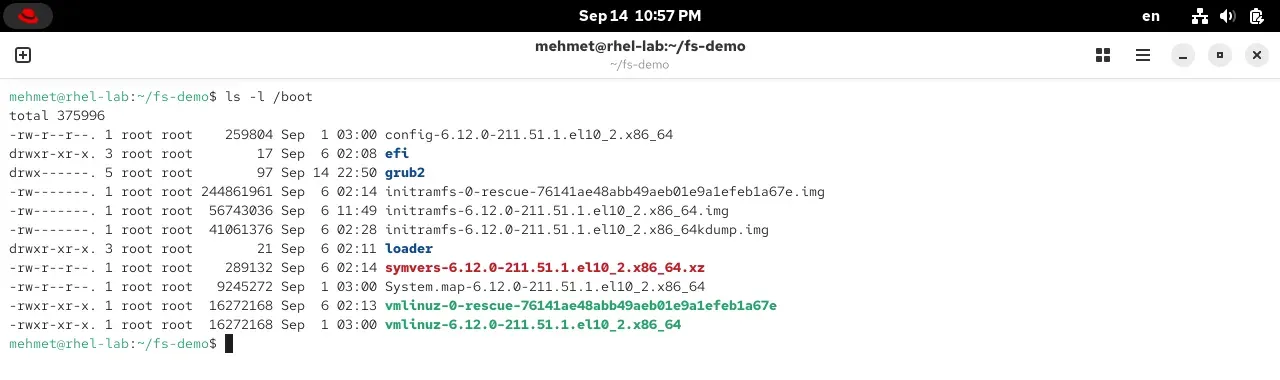
vmlinuz-6.12.0-211.51.1.el10_2.x86_64 is the kernel itself; initramfs-...img is the initial RAM disk used at boot; grub2/ is the bootloader. In Part 2’s “booting from the ISO” section we described these files being loaded into memory. We also took the version number (6.12.0-211...) apart there; here it is on disk.
File operations: create, copy, move, delete
We learned to walk the tree; now let’s prune the branches ourselves. The basic commands for working with files and folders are few and used every day:
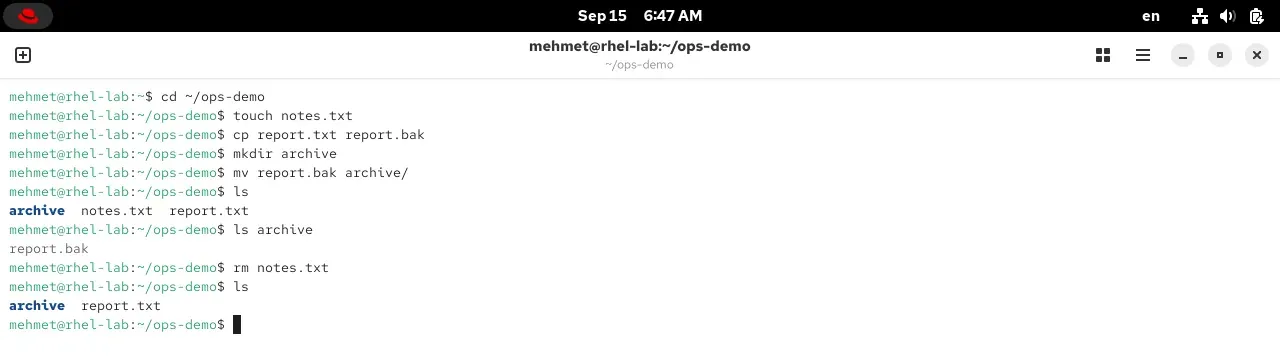
touch filecreates an empty file (or updates its timestamp if it exists).cp source destcopies. To copy a folder with its contents,cp -r(recursive).mv source destmoves. The interesting part:mv old.txt new.txtis also renaming; because, as you’ll see shortly, the name is a label separate from the file itself, and moving is just changing the label.mkdir foldermakes a folder; for a whole nested chain at once,mkdir -p a/b/c. An empty folder is removed byrmdir.rm filedeletes. To delete a folder and its contents,rm -r folder.
A file’s identity: type, permissions and inode
Now let’s zoom in on a single file. A file has three basic pieces of identity: its type, its permissions and its inode.
File types
In Part 3 we briefly saw that the first letter of ls -l output tells the file type. Let’s see them all together now:
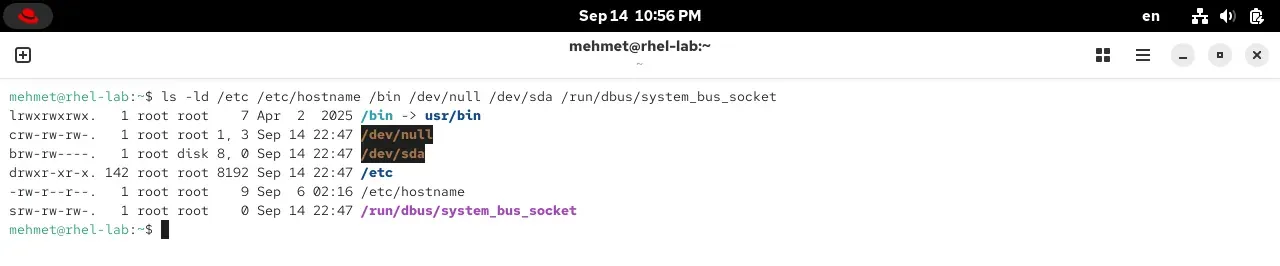
The first letter of the line gives away the type:
| Letter | Type | Example |
|---|---|---|
- | Regular file | text, program, image |
d | Directory | /etc |
l | Symbolic link | /bin -> usr/bin |
c | Character device | /dev/null, keyboard |
b | Block device | /dev/sda (disk) |
s | Socket | an endpoint programs talk through |
p | Pipe | a data flow channel |
The nine letters after the first (rwxr-xr-x) are the permissions; we’ll cover those at length in Part 6, “users and permissions”. For now, recognizing the type is enough.
inode: a file’s real identity
Now a mind-bending but very important fact: a file’s name is not written in the file itself. A file’s real identity is a record called the inode; it holds its owner, permissions, size, timestamps and where the data sits on disk. The name is just a label kept in a directory that points to an inode number. stat shows a file’s full inode information:
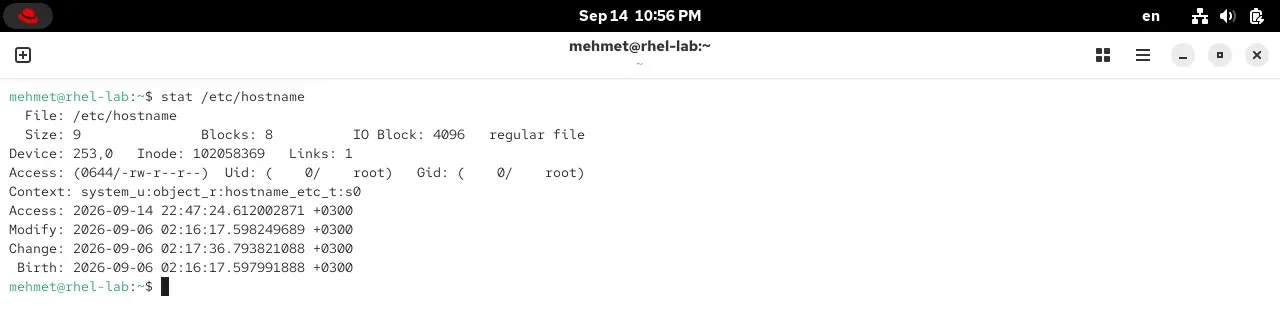
This “name apart, file apart” idea feels odd at first but explains a lot: renaming a file is really just changing the label (the data never moves), and one file can have several names. That’s exactly where links come from.
The four timestamps
The bottom four lines of stat output are the file’s timestamps, and most people confuse them:
- Access (atime): when the file was last read.
- Modify (mtime): when its content last changed. This is the date you see in
ls -l. - Change (ctime): when the inode info (permissions, owner, name) last changed; even if the content doesn’t change, changing permissions updates ctime.
- Birth (btime): when the file was created (a newer addition; not on every file system).
This distinction has practical value: “when was this file last touched” and “when did its content last change” are different questions, and searches like find -mtime look exactly at these stamps.
A bit more on the inode: a directory is a name-book
Once you understand the inode, you can figure out what a directory is: a directory is a book mapping names to inode numbers. It holds lines like “report.txt → 5028314”, that’s all. Deleting a file (rm) is really removing a line from this book and decrementing the count of names pointing to that inode; when the count hits zero, the data is truly freed. Let’s see it concretely:
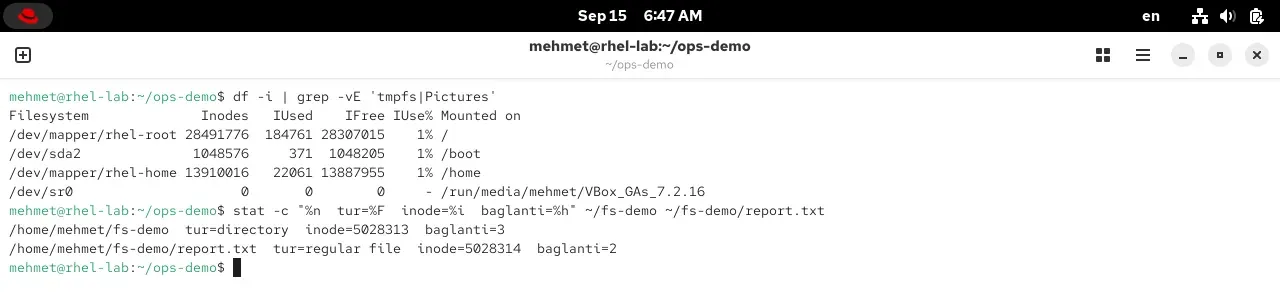
Two nice details: (1) df -i shows the number of inodes on the disk. Even if the disk has free space, if inodes run out (millions of tiny files) you get a “disk full” error; an experienced sysadmin checks df -i alongside df -h. (2) the link count (Links) in stat speaks: report.txt’s count is 2 because hardlink.txt points to the same inode. The fs-demo directory’s count is 3, because every directory comes with at least two links (its own name and the . inside it) and each subfolder adds one more (here, logs). So from a directory’s link count you can even tell how many subfolders it has.
file: type by content
ls tells you the shell type of a file; but what’s inside it? The file command guesses what a file is by its content, not its name:
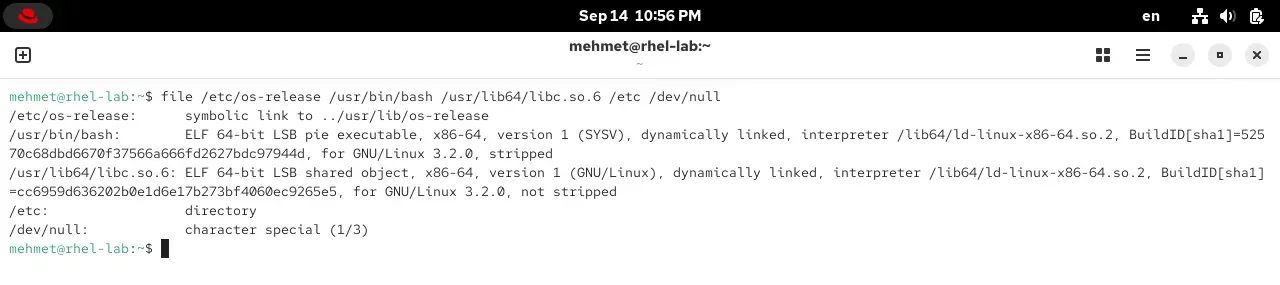
In Linux the extension (.txt, .sh) is not required; a file can be text without a .txt name. Content is what decides, so file is very useful: with one command you learn whether a mysteriously named download is really an image, a program or a compressed archive.
Links: one file, several names
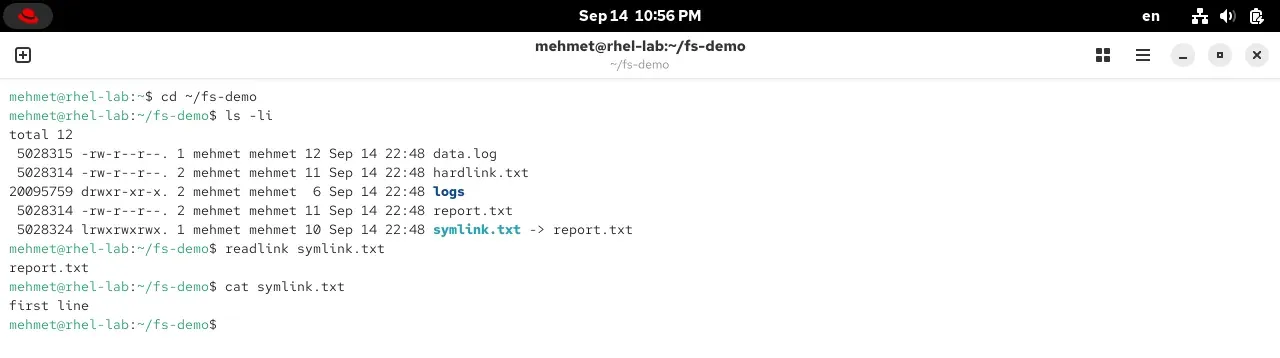
We saw that the name and the file are separate things. So we can give one file two names. There are two kinds of link, and the difference matters:
flowchart TD
    N1["report.txt (name)"] --> I["inode 5028314<br/>the real file + data"]
    N2["hardlink.txt (name)"] --> I
S["symlink.txt (name)"] -->|"points to a path"| N1- Hard link: a second name given to the same inode. Made with
ln report.txt hardlink.txt. Inls -liboth have the same inode number and aLinkscount of 2. Both are equally “real” files; deleting one leaves the data intact as long as the other name exists. Its limit: it works within the same disk partition and not on directories. - Symbolic link (symlink): a small shortcut file that points to a path, not to a file. Made with
ln -s report.txt symlink.txt. It shows inls -lwith a leadingland-> report.txt. If the target is deleted it’s left “broken” (nothing to show). In return it works across disks and can point to directories; thebin -> usr/binin the root directory was exactly this.
You’ll see symlinks a lot in daily life: pointing a stable name at the “current version” of a program, or linking a config file to another place. Hard links are rarer but are the backbone of backup systems.
A first look at permissions: sticky and setuid
We’ll cover permissions (rwxr-xr-x) fully in Part 6, but two special bits will show up in the file system right away; just know their names:

- Sticky bit (
t):/tmppermissions end withdrwxrwxrwt./tmpis a shared folder everyone can write to; thanks to the sticky bit, everyone can delete their own files but not someone else’s. Like a “mind your own trash” rule in a shared bin. - Setuid bit (
s):/usr/bin/passwdhasrwsin its permissions. Normally a program you run runs with your privileges; a setuid program runs with its owner’s (root’s) privileges. passwd is like this: to write your password into/etc/shadowit briefly becomes root. Powerful but to be used carefully; it’s one of the first things security audits look at.
”Everything is a file”, really: /proc and /dev
Remember the principle from the start. Now let’s look at its two most striking examples: here the things we call “files” don’t exist on disk at all, the kernel produces them on the fly.
/proc: the kernel’s window
/proc is a virtual file system that takes up no real space on disk; the “files” inside show the current state of the system. You read them with cat, as if they were ordinary text files:
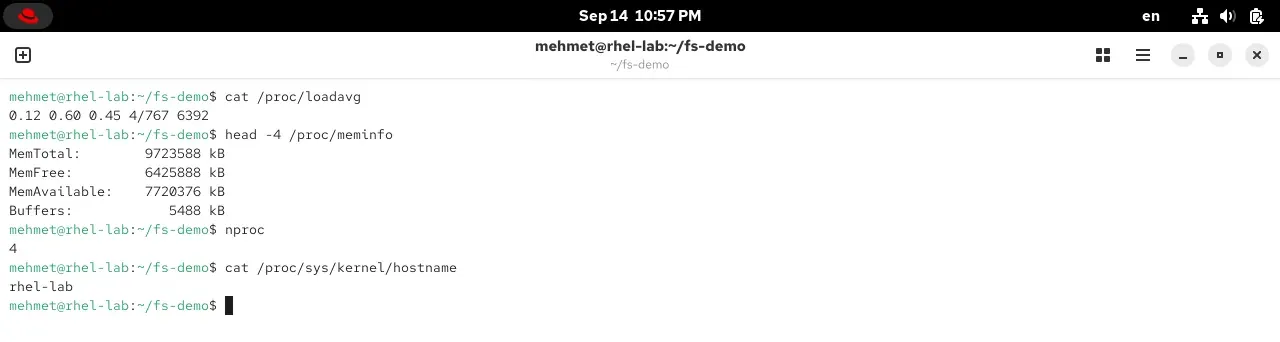
cat /proc/cpuinfogives the processor,cat /proc/meminfomemory,cat /proc/loadavgthe system load.- Each running process has a folder named by its number:
/proc/1234holds that process’s info. - Tools like
top,freeandpsactually read/procbehind the scenes; you can read it directly too. - The ones under
/proc/sysare readable and writable kernel settings. By writing a number to a file you can change the kernel’s behavior; the pinnacle of “everything is a file”.
/dev: devices as files, and /dev/null
Under /dev every piece of hardware appears as a file. The disk is /dev/sda, its first partition /dev/sda1. But the few you’ll use most aren’t even real hardware; they’re virtual devices provided by the kernel:
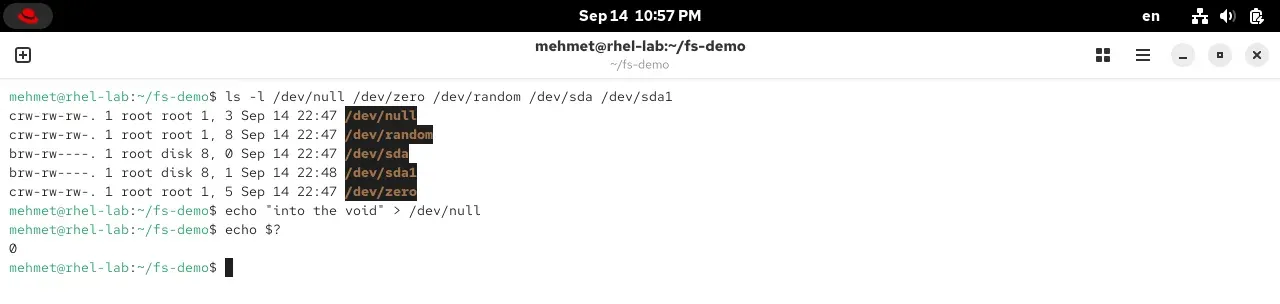
What is /dev/null? Here’s the most famous one. /dev/null is a “black hole” that swallows and discards everything written to it; if you try to read it, it ends immediately, it’s empty. What’s it for? To silence a program’s unwanted output:
command > /dev/null # throw away the normal outputcommand 2>/dev/null # throw away only error messagescommand &>/dev/null # throw away both output and errorsIn Part 3 we used 2>/dev/null to silence the “Permission denied” lines from find; now you know why it worked: the error messages were going to that black hole. Its two siblings come in handy often too: /dev/zero produces endless zeros (to create an empty file or wipe an area), /dev/urandom produces random bytes (to generate passwords and keys). So /dev isn’t only hardware; it also holds taps that “produce and swallow” data.
What is a file system? From block device to mount point
So far we’ve seen the tree’s logic. But how does this tree actually sit on a physical disk? Here three concepts stack on top of each other, and telling them apart is the foundation of system administration.
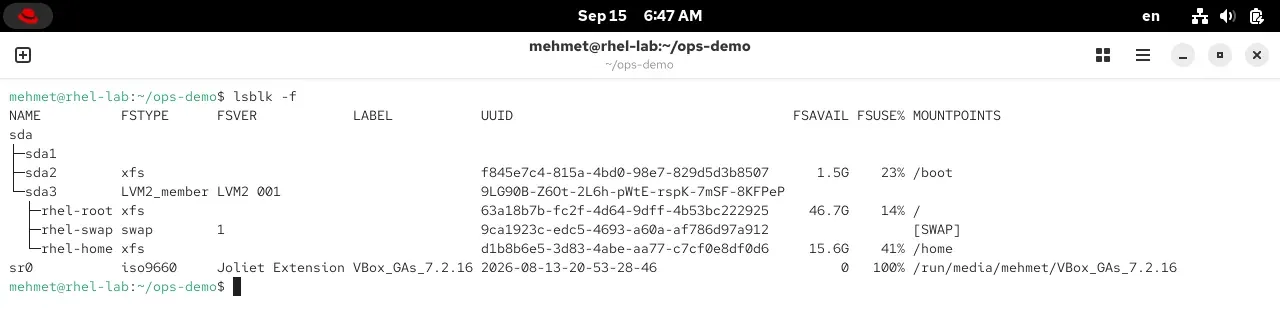
At the bottom is the block device. A block device is a storage device that keeps data in fixed-size blocks and allows direct (random) access to any point; in short, anything that behaves “like a disk”. Examples: the internal hard disk or SSD (/dev/sda, /dev/nvme0n1 for NVMe SSDs), a USB flash drive you plug in (/dev/sdb), an external portable disk, a memory card (/dev/mmcblk0), even a CD/DVD (/dev/sr0). They appear with a leading b in ls -l; their opposite is the character device (c, like the keyboard or /dev/null) that streams data byte by byte. A NAS is usually not a block device: it is mounted as a folder over the network via NFS or SMB; only methods like iSCSI present remote storage as a local block device. Our disk is /dev/sda; partitions are cut on top (sda1, sda2…). Inside a partition a file system is created; the file system is the format that organizes that raw space into “files, directories, inodes”. At the top, that file system is attached to a mount point and becomes part of the tree. lsblk -f shows the whole stack on one screen:
flowchart TD
    A["Block device<br/>/dev/sda (raw disk)"] --> B["Partition<br/>/dev/sda3"]
    B --> C["LVM and file system<br/>rhel-root, format: XFS"]
C --> D["Mount point<br/>/ (attached to the tree)"]Mounting and /etc/fstab
Attaching a file system to the tree is called mounting, detaching it umount. But who knows which disk goes where each time the machine boots? The answer is the /etc/fstab file:
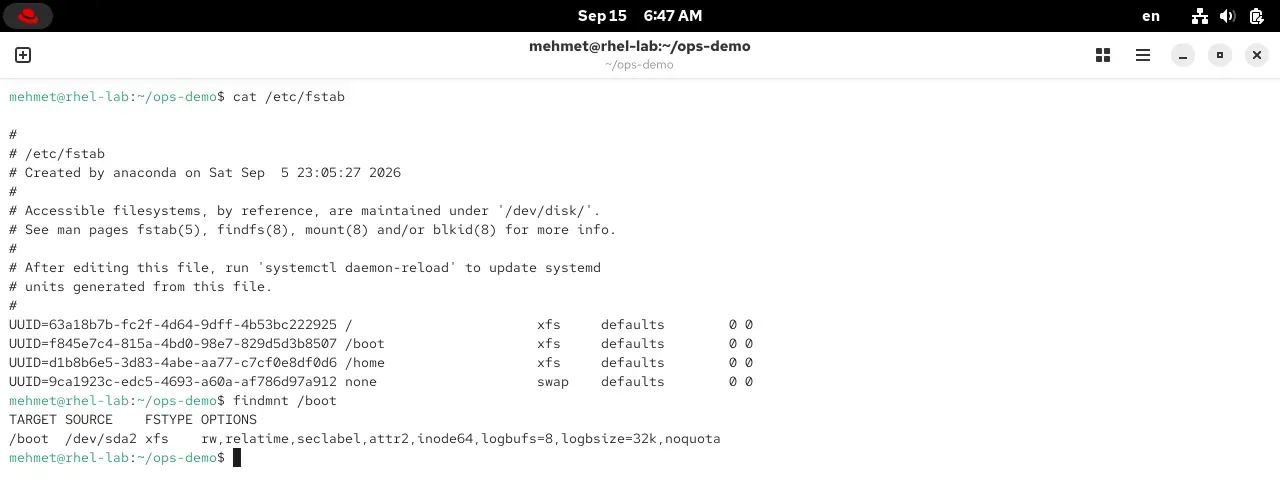
Each line in /etc/fstab is the permanent record of the layout Anaconda built in Part 2: the disk by UUID (so it doesn’t get confused even if the name changes), the mount point, the file system type and options. Every time the machine boots the system reads this file and mounts the disks in place. When you plug in a USB stick you can mount it by hand with sudo mount /dev/sdb1 /mnt, or leave it to the desktop’s automatic mounting; the findmnt and mount commands show what’s mounted where at the moment. We’ll grow disks and play with LVM in detail in Part 11.
Disk and mounting: df and du
We’ve seen the tree and the files; but how does this tree sit on physical disks? Two commands give that picture.
df: file systems and mount points
df (disk free) looks at the system’s file systems as a whole: which partition is mounted where, how full:

Note the “Mounted on” column: this is exactly the mount point concept. In Part 2, when Anaconda partitioned the disk, the root partition was mounted on /, the separate /boot partition on /boot, the /home partition on /home. So when you go into /home/mehmet you’re actually inside a separate disk partition, but nothing in the tree gives it away; everything looks like a single whole. When you plug in a USB stick it’s usually mounted automatically under /run/media/mehmet/....
du: how much space does this folder take?
df looks at the whole; how much space a particular folder takes is told by du (disk usage):

du -sh <folder> gives a folder’s summary size; sort -h sorts the “human-readable” sizes from small to large. When you say “my disk is full, who’s the culprit?”, du is your first command. In short, keep the two apart: df = how full is my disk, du = how much space does this folder take.
Finding files: find and tree
Searching a huge tree by hand is impossible. find is the most powerful way.
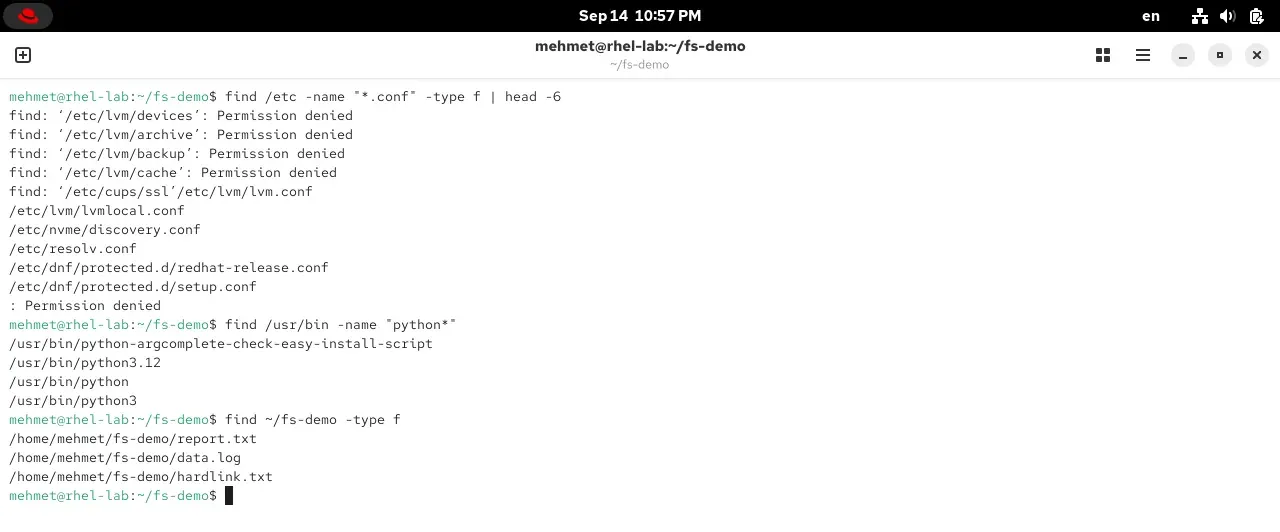
The basic pattern is simple: find <where> <criterion>.
find /etc -name "*.conf" # by name (config files)find ~ -type f # files only (not directories)find /var -size +100M # larger than 100 MBfind /home -mtime -1 # changed in the last dayfind ~/fs-demo -type f -delete # delete what's found (careful!)The “Permission denied” lines you see are normal: find can’t enter folders you have no read permission for. For a system-wide search you may need sudo in front. If you want a quick lookup by name, locate (plocate on RHEL) is faster but searches a pre-built index; we’ll see installing it in Part 7.
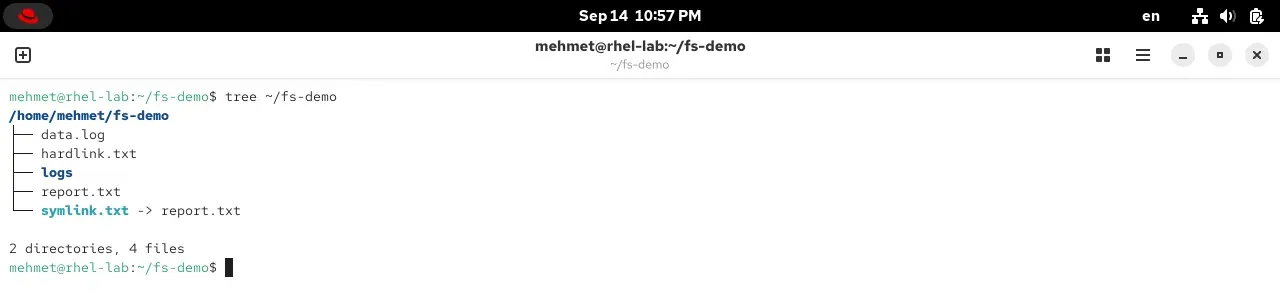
And if you want to see the tree visually, tree:
Wildcards: many files at once
Instead of typing file names one by one, you can write a pattern and catch many files at once. It’s the shell that does this (not the command): you write the pattern, the shell expands it to the matching file names; this is called globbing.
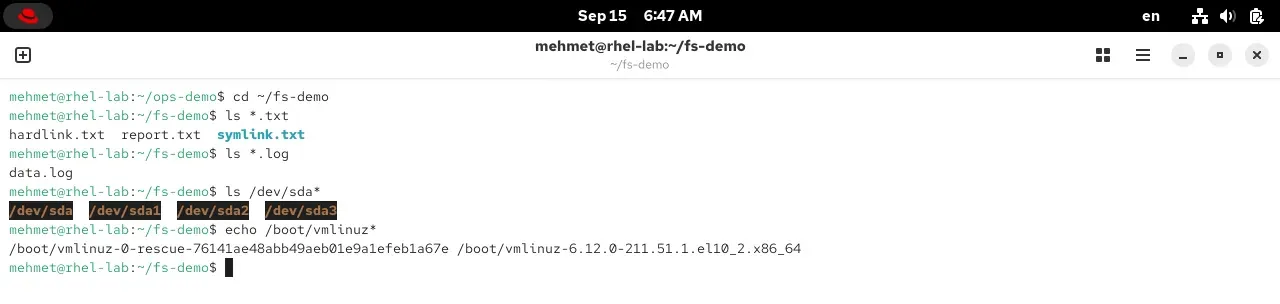
*any number of characters:*.txtall .txt files,report*those starting with “report”.?a single character:file?.txt→file1.txt,file2.txt(but notfile10.txt).[...]brackets, a set:file[12].txt→ onlyfile1.txtandfile2.txt;[a-z]a letter range.{...}braces, options:file.{txt,log}→file.txtandfile.log.
This works with every command like ls, cp, rm because the shell does the work, not the command. That’s exactly why you should be careful with rm: before deleting, list the same pattern with ls to see what you’ll delete. Even echo * prints everything in the current directory; that’s the harmless way to test a pattern.
Try it yourself
Answer each question in your head first, then try it on your machine.
Question 1 — Where does the path lead? (easy)
Read the path
/home/mehmet/fs-demo/report.txtfrom left to right. How many directories do you pass through to reach the file, and is this an absolute or a relative path?
Question 2 — Read the type (easy)
In
ls -loutput one line starts withbrw-rw----and another withlrwxrwxrwx. What kinds of files are these?
Question 3 — The same file? (medium)
Two files show the same inode number in
ls -li. What does that mean? And if one were a symlink, what would the inode numbers look like?
Question 4 — Silence the noise (medium)
A command prints both a result and a lot of error messages; you don’t want to see the errors. What do you do? And if you wanted to throw away both the result and the errors entirely?
Question 5 — df or du? (easy)
(a) “What percent is my root disk full?” (b) “How much space does my Downloads folder take?” Which command for which question?
Question 6 — Copy and move (easy)
In
~/fs-demothere isreport.txt. Create a backup calledreport.bak, then make a folder calledbackupand move this backup into it. Which commands, in order?
Question 7 — Pick the right pattern (medium)
A folder has
report1.txt,report2.txt,report10.txtandnotes.txt. What doesls report?.txtshow? Andls report*.txt?
Summing up
We’ve drawn Linux’s map. You now know what’s in which folder, can read a file’s real identity, and see what the “everything is a file” principle means. Put the following in your pocket.
Sources
- Filesystem Hierarchy Standard (FHS 3.0): the official standard for the directory tree.
- RHEL 10 documentation: file systems and storage management.
man hier: the manual page describing the directory tree on your own machine (typeman hier, try it).- The Linux Command Line (William Shotts): the file system and navigation chapters, free.
- The “everything is a file” principle: the Unix philosophy.
Related posts
Frequently asked questions
What does "everything is a file" mean in Linux?
This principle, inherited from Unix, means that almost everything in the system can be reached through a single, uniform interface, that is, like a file. Ordinary text and program files are files, of course; but directories are also files (they hold the list of names inside them), devices like the disk and the keyboard appear as files under /dev, and the state of running processes and of the kernel is read like files under /proc and /sys. The practical benefit: you talk to all of them with the same handful of commands (cat, ls, echo, cp). For example, cat /proc/meminfo shows memory status and echo writing to a device manages hardware; all with the "read from / write to a file" mindset.
What is the root directory (/), is it like the C: drive on Windows?
The root directory is the single starting point at the top of the whole file system, shown by /; every path branches from it. The biggest difference from Windows: Linux has no separate drive letters like C:, D:. A second disk, a USB stick or even a network share is "mounted" onto a folder of the tree and appears as if it were inside that folder. So no matter how many disks you have, there is a single unified tree; everything is under /.
What are the /etc, /var, /usr and /home folders for?
This layout is standardized by the FHS (Filesystem Hierarchy Standard), so it is the same on every Linux. /etc holds the system config files (plain text; configuration lives here). /var holds constantly changing data: logs (/var/log), mail, databases, cache. /usr is the real home of installed programs and libraries (most commands live under /usr/bin). /home holds each user's personal folder (like /home/mehmet). This split answers "where is the config, the log, the program, my own file" with the same answer on every system.
What is an inode?
The inode is a file's real identity: the record holding its owner, permissions, size, timestamps and where its data sits on disk. The surprising part: the file's name is not inside the inode. The name is just a label kept in a directory that points to an inode number. That is why one inode can have several names (a hard link), and renaming a file is really just changing the label. ls -i shows a file's inode number, stat shows the full inode information.
What is the difference between a hard link and a symbolic link (symlink)?
A hard link is a second name given to the same inode (the same real file); with ls -i both have the same inode number, and even if one is deleted the data survives as long as the other name exists. It is made with ln. A symbolic link (symlink) is a small "shortcut" file that points not to a file but to a path; it appears in ls -l with a leading l and an -> marker, and if the target is deleted it is left "broken". It is made with ln -s. Roughly: a hard link is a second name for the same file, a symlink is a signpost pointing at another file.
What is /dev/null and what is it for?
/dev/null is a special device file under /dev; it is a "black hole" that swallows and discards everything written to it (and if you try to read it, it ends immediately, it is empty). It is used to silence a program's unwanted output: command > /dev/null throws away the output, command 2>/dev/null throws away only error messages (we used this in Part 3 to silence find output), command &>/dev/null throws away both the normal output and errors. It is not real hardware; it is a virtual device provided by the kernel. It has siblings: /dev/zero produces endless zeros, /dev/urandom produces random bytes.
What is the /proc directory?
/proc is a virtual file system that does not really exist on disk; the kernel produces it live in memory. The "files" inside show the current state of the system: /proc/cpuinfo the processor, /proc/meminfo memory, /proc/loadavg the system load, and each running process has a folder named by its number (/proc/1234) with that process's info. You read them with cat; tools like top, free and ps actually read /proc behind the scenes. The ones under /proc/sys are readable/writable kernel settings; it is the finest example of the "everything is a file" principle.
What is the difference between df and du?
Both are about disk space but answer different questions. df (disk free) looks at whole file systems: which partition is mounted where, how full, how free (df -hT for readable types and sizes). du (disk usage) computes how much space a particular folder or file takes (du -sh folder for a summary size). In short: "how full is my disk?" is answered by df, "how much space does this folder take?" by du.
What is a mount point?
A mount point is the folder where a disk partition or device is attached to the file tree. Since Linux has no separate drive letters, a second disk or a USB stick is "mounted" onto a folder of the tree, and from then on that folder's contents are really that disk's contents. In Part 2, when Anaconda partitioned the disk, the root partition was mounted on /, the separate /boot partition on /boot, and the /home partition on /home; the "Mounted on" column of df -hT shows exactly this. When you plug in a USB stick it is usually mounted automatically under /run/media.
What is the find command for, and how do you use it?
find is the most powerful way to search for files in a directory tree. The basic pattern: find <where> <criterion>. Examples: find /etc -name "*.conf" (by name), find ~ -type f (files only), find /var -size +100M (larger than 100 MB), find /home -mtime -1 (changed in the last day). You can also act on what it finds: find ... -delete or find ... -exec command {} \\;. In folders you cannot read it prints "Permission denied"; a system-wide search may need sudo in front. For quick name lookups, locate/plocate is faster but searches a pre-built index.
How do I tell a file's type?
Two ways. The first letter of ls -l output tells the type: - a regular file, d a directory, l a symbolic link, c a character device (like the keyboard), b a block device (like a disk), s a socket, p a pipe. Second, the file command guesses what a file is by its content, not its name: file photo.jpg says "JPEG image", file script.sh "shell script", file /usr/bin/ls "ELF executable". Extensions are not required in Linux; content is what matters, which is why file is so useful.
What is a hidden file, and how do I show them?
In Linux, files and folders whose names start with a dot are considered hidden; a plain ls does not show them. They are usually config files: .bashrc, .ssh/, .config/. To see them you use ls -a (all). There is no magic, just a convention: putting a dot at the start of a name keeps the file out of the everyday listing. When you run ls -a in your home directory, those are the config files you see.
How do I copy, move or delete a file?
cp source dest copies (cp -r for a folder), mv source dest moves (and also renames: mv old.txt new.txt), rm file deletes (rm -r for a folder and its contents). For a new empty file use touch, for a folder mkdir (mkdir -p for nested ones). Careful: what rm deletes does not go to a trash can, it is gone; rm -rf especially is dangerous. Before deleting you can ask for confirmation with rm -i, or list the same pattern first with ls.
What does file system type (XFS, ext4) mean, and how do I check it?
A file system is the format that organizes raw disk space into files, directories and inodes. RHEL defaults to XFS, Ubuntu/Debian to ext4, USB sticks mostly to vfat/exFAT, ISOs to iso9660. The type is chosen when a partition is formatted with mkfs. You see the types and mount points on your machine with lsblk -f or df -T. Different types work under a single command (cd, ls) thanks to the kernel's VFS layer.
How do wildcards (*, ?) work?
Wildcards are interpreted by the shell, not the command (globbing): you write the pattern, the shell expands it to the matching file names and passes those to the command. The asterisk means any number of characters (*.txt all .txt files), the question mark a single character (file?.txt), brackets a set, braces options. It works with every command like ls, cp, rm. Be careful with rm: list the same pattern with ls before deleting; you can test a pattern harmlessly with echo *.
What is a block device?
A block device is a storage device that keeps data in fixed-size blocks and allows random access to any point; in short, anything that behaves like a disk. Examples: internal hard disks and SSDs (/dev/sda, /dev/nvme0n1 for NVMe), USB flash drives (/dev/sdb), external portable disks, memory cards (/dev/mmcblk0), CD/DVD (/dev/sr0). They appear with a leading b in ls -l. The opposite is a character device (c): one that streams data byte by byte, like the keyboard, a serial port, or /dev/null. A NAS is usually not a block device; it is mounted as a network share over NFS/SMB, and only methods like iSCSI present remote storage as a local block device.