Java: Installing the JDK and Your First Hello, World!
Install JDK 25 on Windows, macOS and Linux, understand PATH, then write, compile and run your first Java program: javac, java, jshell and first errors.
Series · Java
- 1. Java: What Is Java and How Does It Work?
- 2. Java: A Journey into the Depths of the JVM
- 3. Java: Installing the JDK and Your First Hello, World!
We have talked for two parts. In the first part we saw what Java is and how javac and the JVM work hand in hand; in the second part we walked through the JVM’s door and toured the warehouse, the desks and the kitchen. Today we stop talking. You will install Java on your computer, write your first program with your own hands, and see “Merhaba, dünya!” (that’s “Hello, world!” in Turkish, and it’s the greeting we’ll keep) appear on the screen.
Honestly, this is the most enjoyable moment of the series. In the Algorithms series we brewed tea on paper, put values into mailboxes, drew loops; and we kept saying “it’s the same in a real language”. That day is today. The PRINT command on paper is going to print something on a real computer.
What are we installing? JDK, JRE and JVM
In part 1 we drew a set of nesting dolls; remember: innermost the JVM (the engine that runs bytecode), around it the JRE (engine + Java’s ready-made libraries; enough to run a program), outermost the JDK (JRE + the tools for writing programs: compiler, playground, debugger).
flowchart TD
    subgraph JDK["JDK: development kit"]
        direction TB
        T["javac, jshell, javap, jar, javadoc ..."]
        subgraph JRE["JRE: runtime environment"]
            direction TB
            L["Ready-made libraries<br/>(String, List, files, network ...)"]
            JVM["JVM<br/>the engine that runs bytecode"]
        end
    end
Since we’re going to write programs, we install the outermost doll, the JDK. The libraries and the JVM come inside it. If you come across “install the JRE first” in older articles, don’t be surprised: since Java 11 (2018) there’s no need to download a separate JRE; most distributions ship only the JDK.
Which version? Why 25?
Java’s release calendar, as you’ll remember from the version table in part 1, is like a train timetable: a new version departs every March and September. But not every train is a long-distance train. Most versions lose support six months later when the next one arrives; the ones released every two years get updates for years. These are called LTS (Long-Term Support): 8, 11, 17, 21, 25 and 29, coming in 2027.
| Version | Released | Status |
|---|---|---|
| Java 21 | September 2023 | LTS, still widespread; enough for this series, but the short void main() won’t work |
| Java 25 | September 2025 | LTS, current; the version we use in this series |
| Java 26 | March 2026 | Six-month release, giving way to 27 in September |
| Java 27 | September 2026 | Out this month; not LTS |
For a beginner the right choice is always the current LTS, which today means 25. You get the newest conveniences (the plain main from part 1) and you work with the same version for two years. If 21 is installed on your machine, no need to panic; you just write the first program in its classic form, which is below as well.
Which JDK? One source, many builds
Now comes the confusing part; on the download pages you’ll see names like Oracle JDK, OpenJDK, Temurin, Corretto, Zulu. Are they all Java? Yes. What’s the difference? Remember the Linux analogy from the Red Hat post: one kernel, many distributions. It’s the same with Java.
flowchart TD
    SRC["OpenJDK<br/>Java's open source code, the single source"] --> O["Oracle JDK"]
    SRC --> T["Eclipse Temurin<br/>(Adoptium)"]
    SRC --> R["Red Hat build<br/>of OpenJDK"]
    SRC --> A["Amazon Corretto"]
    SRC --> Z["Azul Zulu"]
    SRC --> M["Microsoft Build<br/>of OpenJDK"]
    SRC --> D["Operating system packages<br/>(Fedora, Debian, Ubuntu ...)"]
OpenJDK is Java’s open source code; developed in a single repository, in front of everyone’s eyes. Companies take that code, build it, test it and distribute it under their own name. All of them pass the same compatibility test suite (the TCK), so if Merhaba.java runs on one of them it runs on all of them.
| Build | From | When to pick it |
|---|---|---|
| Eclipse Temurin | Eclipse Foundation (Adoptium) | The most practical choice on Windows and macOS; free, every platform |
| Oracle JDK | Oracle | Companies that want Oracle support; free to use since 17 (NFTC) |
| Red Hat build of OpenJDK | Red Hat | The version that comes with the package manager on RHEL and Fedora; also available for Windows |
| Amazon Corretto | Amazon | Projects running on AWS |
| Azul Zulu | Azul | Those who need support even for very old versions |
| Microsoft Build of OpenJDK | Microsoft | Azure and Windows-oriented projects |
| Distribution package | Fedora, Debian, Ubuntu … | The easiest route on Linux: dnf or apt |
Our decision: Temurin on Windows and macOS, the package manager on Linux. The screens in this post are from Red Hat’s build; on RHEL it comes with dnf.
Step 1: installing the JDK
Three operating systems, three separate routes. Read only yours, then skip to “Step 2”.
Windows
- In a browser go to adoptium.net. The page recognises your operating system and shows a big “Latest LTS Release” button; check that it says Temurin 25 underneath. The button downloads an installer with the
.msiextension (about 180 MB). - Double-click the downloaded file. On the wizard’s “Custom Setup” screen there are four options: Add to PATH (ticked by default, leave it), Associate .jar (leave it), Set JAVA_HOME variable (tick it; it will be useful later), JavaSoft registry keys (leave it). Next, Install; Windows asks for administrator approval, say Yes.
- When it finishes, close and reopen any open terminal windows. People who skip this step get “java is not recognized” in the next step; the PATH change only applies to new windows.
- In the new terminal type
java -versionandjavac -version. Both should print a version starting with 25.
For those who like the command line there’s a one-liner too; in a PowerShell opened as administrator:
winget install EclipseAdoptium.Temurin.25.JDKmacOS
- The adoptium.net page recognises the Mac. The only thing to watch is the processor: Macs from 2020 on (M1, M2, M3, M4) are aarch64, older Intel Macs are x64. If unsure, open “About This Mac” from the Apple menu at the top left; if you see “Apple M” it’s aarch64. Download the
.pkgfile. - Double-click the file and finish the wizard with Continue, Continue, Install; the Mac asks for your password.
- Open the Terminal application (type “Terminal” into Spotlight) and check with
java -version.
If you use Homebrew, one line:
brew install --cask temurin@25Linux
On Linux we use the package manager; the “download from the store” route I described in the Red Hat post. Depending on your distribution:
sudo dnf install java-25-openjdk-develsudo apt install openjdk-25-jdksudo pacman -S jdk-openjdkOn my RHEL 10 virtual machine I first checked which versions the repository has, then installed 25:
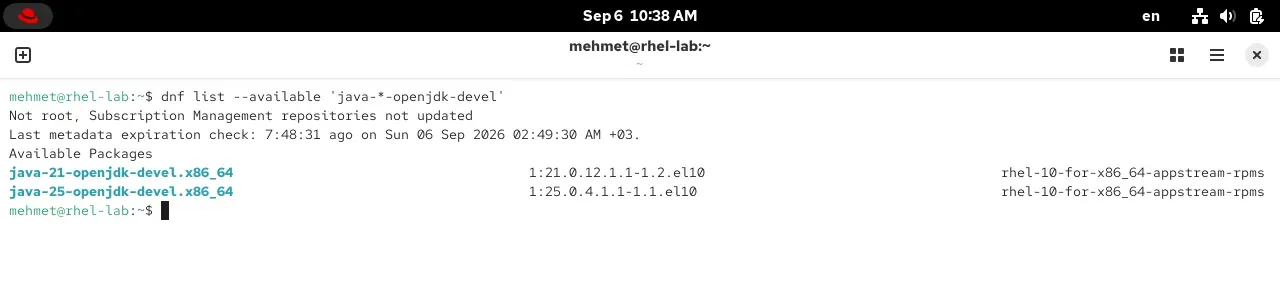
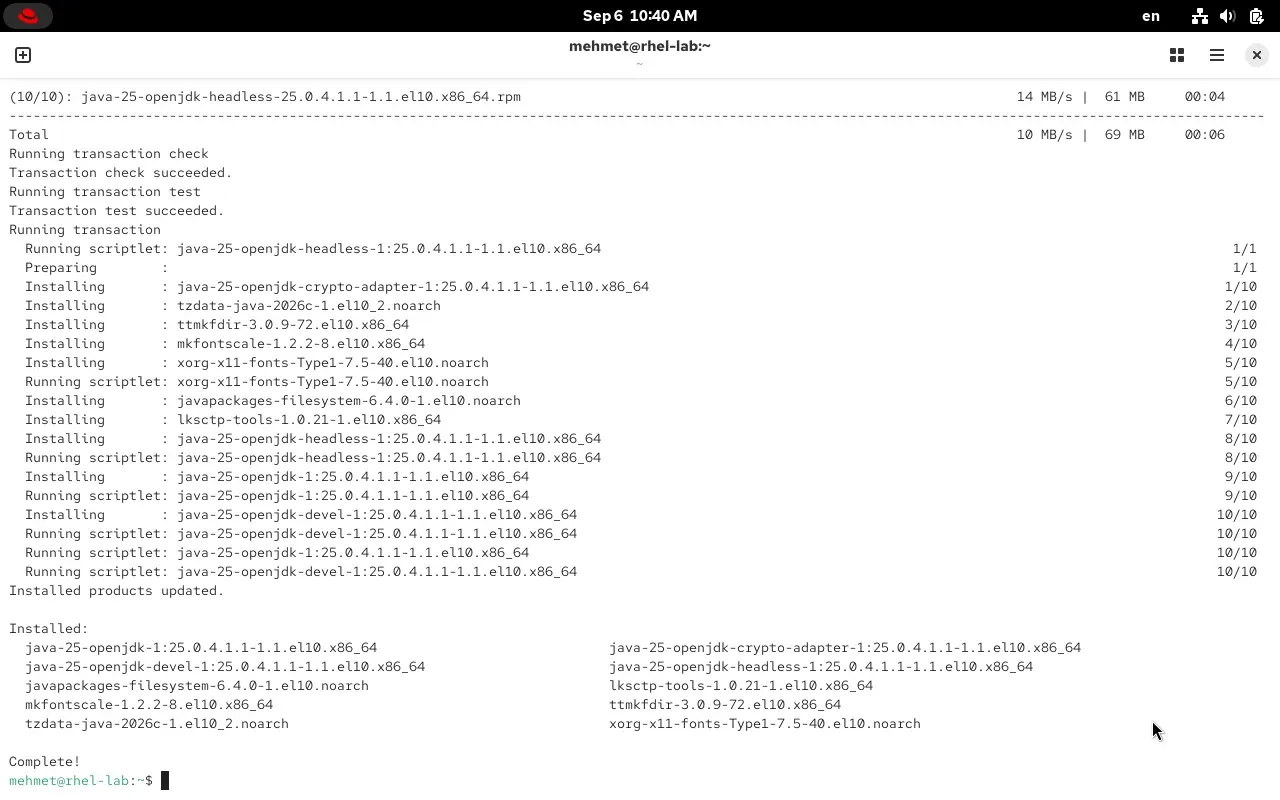
Look at the package list: java-25-openjdk-headless is the engine itself, java-25-openjdk the graphical parts for programs that open windows, java-25-openjdk-devel the toolbox we asked for. There’s also tzdata-java: Java’s own time zone table; the Java-flavoured sibling of the tzdata from the Red Hat post.
The portable archive: no installer at all
You can run Java without any installer too; a JDK is really just a folder. Download Temurin’s .tar.gz or .zip, or Red Hat’s “portable JDK” archive, unpack it into a folder and run the bin/java inside directly. I tried Red Hat’s archive on my own Linux:
tar -xJf java-25-openjdk-25.0.4.0.7-1.0.portable.jdk.x86_64.tar.xz./java-25-openjdk-25.0.4.0.7-1.0.portable.jdk.x86_64/bin/java -versionopenjdk version "25.0.4" 2026-07-21 LTSOpenJDK Runtime Environment (Red_Hat-25.0.4.0.7-1) (build 25.0.4+7-LTS)OpenJDK 64-Bit Server VM (Red_Hat-25.0.4.0.7-1) (build 25.0.4+7-LTS, mixed mode, sharing)The only thing an installer does is put this folder in a sensible place and add its bin folder to PATH. We’re coming to that word now, because half of the “Java doesn’t work” complaints come from it.
Step 2: checking the installation and understanding PATH
Whichever route you installed by, the check is the same: open a new terminal and type these.
java -versionjavac -version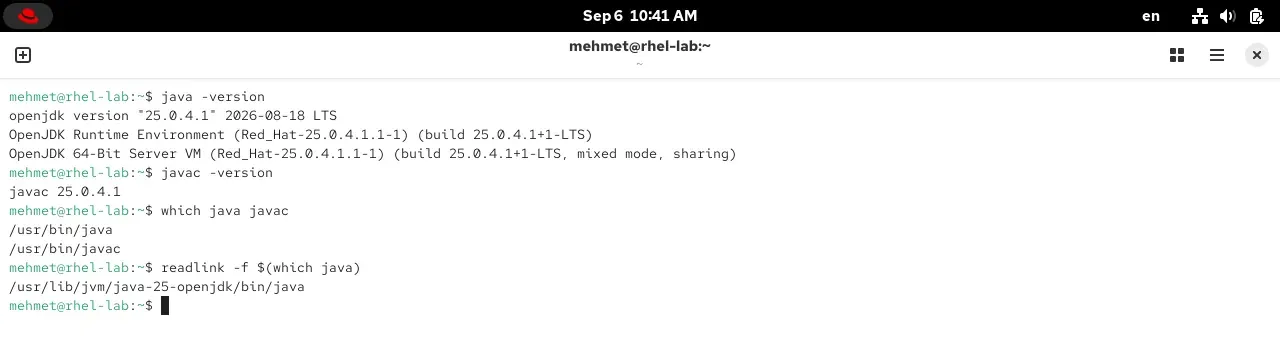
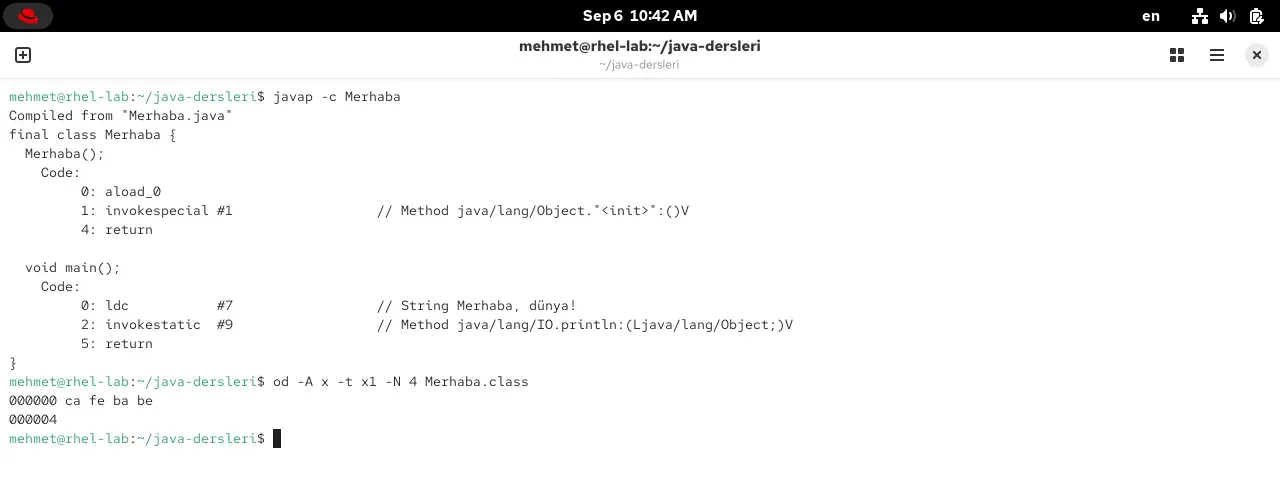
Let’s read the first line: openjdk version "25.0.4.1" 2026-08-18 LTS. openjdk says the source is OpenJDK; 25.0.4.1 is a small interim fix released on 18 August on top of version 25’s July update; LTS says it’s a long-term support release. The Red_Hat-25.0.4.1.1-1 in parentheses is the builder’s signature; on Temurin you’d see something like Temurin-25.0.4+7 there. mixed mode on the last line means the interpreter + JIT pair we described in part 2 is on, and sharing means frequently used classes are shared from a pre-built archive. Two lines of output, two parts of theory.
PATH: where does the computer look for javac?
You asked a friend “could you fetch the scissors?”. Which drawer are the scissors in? Your friend doesn’t search the whole house; they check a few familiar places: the kitchen drawer, the desk, maybe the bathroom cabinet. The operating system behaves the same way when you type a command in the terminal: it has a list of folders to search, called PATH, and it looks for the command in those folders in order.
flowchart TD
    A["You typed 'javac' in the terminal"] --> B["The shell takes the PATH list<br/>/usr/local/bin, /usr/bin, /bin ..."]
    B --> C{"Is javac in the<br/>next folder?"}
    C -->|"Yes"| D["Found: run it"]
    C -->|"No"| E{"End of the list?"}
    E -->|"No"| C
    E -->|"Yes"| F["command not found /<br/>is not recognized"]
The installer’s “Add to PATH” option adds the JDK’s bin folder to this list. On Linux the package manager takes a more elegant route: it puts javac into /usr/bin, which is already on the list, but not as the real file, as a shortcut to the real file. On the screen, which java showed /usr/bin/java, and readlink -f the end of the shortcut: /usr/lib/jvm/java-25-openjdk/bin/java. The /etc/alternatives stop in between is the mechanism that picks the “default” when several Javas live on the same machine; sudo alternatives --config java switches between them. On Windows where java gives the same information; on macOS /usr/libexec/java_home -V lists every installed version.
JAVA_HOME: the address tools use to find Java
PATH is for finding the java and javac commands. JAVA_HOME does a different job: it’s a separate environment variable holding the full address of the JDK folder. The terminal doesn’t look at it when running a command, but most of the tools you’ll meet later do. The build tools mentioned in the questions above, Maven and Gradle, IDEs like IntelliJ and Eclipse, application servers like Tomcat, ask “where is Java installed?” not to PATH but to JAVA_HOME. Setting it correctly now saves you from the common “JAVA_HOME is not set” error later.
On Windows, if you ticked “Set JAVA_HOME variable” in the installer, it’s already set. If you didn’t, or want to do it by hand, by operating system:
setx JAVA_HOME "C:\Program Files\Eclipse Adoptium\jdk-25.0.4.7-hotspot"echo 'export JAVA_HOME=$(/usr/libexec/java_home -v 25)' >> ~/.zshrcsource ~/.zshrcecho 'export JAVA_HOME=/usr/lib/jvm/java-25-openjdk' >> ~/.bashrcsource ~/.bashrcAfter setting it, open a new terminal and check: echo $JAVA_HOME on Linux and macOS, $env:JAVA_HOME on Windows (PowerShell). The output should print the path of the JDK folder.
What’s inside the JDK folder?
Since an installation is just a folder, let’s look inside. On RHEL the folder is /usr/lib/jvm/java-25-openjdk; on Windows C:\Program Files\Eclipse Adoptium\jdk-25..., on macOS /Library/Java/JavaVirtualMachines/temurin-25.jdk/Contents/Home. The contents are the same everywhere:
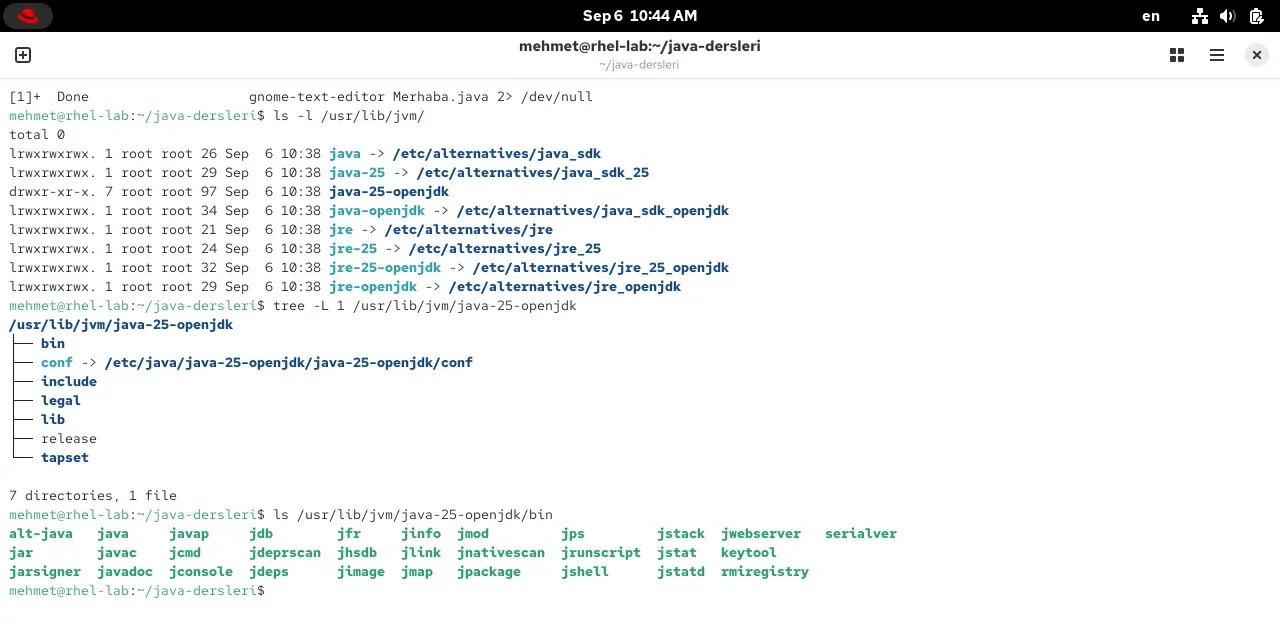
| Folder or file | What’s inside |
|---|---|
bin/ | The tools: java (launcher), javac (compiler), jshell (playground), javap (bytecode reader), jar (packager), javadoc (documentation generator), jlink and jpackage (distribution builders), jwebserver (a small web server), keytool (certificate tool) and the debugging tools |
lib/ | Java’s ready-made libraries and the JVM itself; the lib/modules file is all of the drawers (modules) from part 2, 140 MB in a single file |
include/ | Header files written in C; the outside of the side door (JNI) from part 2 |
conf/ | Configuration files: security, network, logging |
release | Version information; cat release tells you who built it and when |
legal/ | Licence texts |
We won’t learn all thirty tools. Three are enough today: javac, java and jshell. Plus javap for the curious.
Step 3: the first program
If you’re ready, on to the real work. Three steps: a folder, a file, two commands.
Folder and editor
- Create a folder on your computer for this series; I called mine
java-dersleri(“java lessons”). Under Documents on Windows, in the home folder on macOS and Linux. You can do it from the terminal too:mkdir java-derslerithencd java-dersleri. No spaces or special characters in the folder name; they’ll give you headaches later. - Open a plain text editor. Notepad on Windows, TextEdit on macOS (from the menu, Format → Make Plain Text, otherwise it saves rich text and Java won’t understand it), Text Editor or gedit on Linux. Word and the like won’t do; they add invisible formatting.
- Type the three lines below and save them inside the folder as
Merhaba.java. In Windows Notepad’s “Save As” window set “Save as type” to All Files; otherwise the file silently becomesMerhaba.java.txtandjavaccan’t find it.
void main() { IO.println("Merhaba, dünya!");}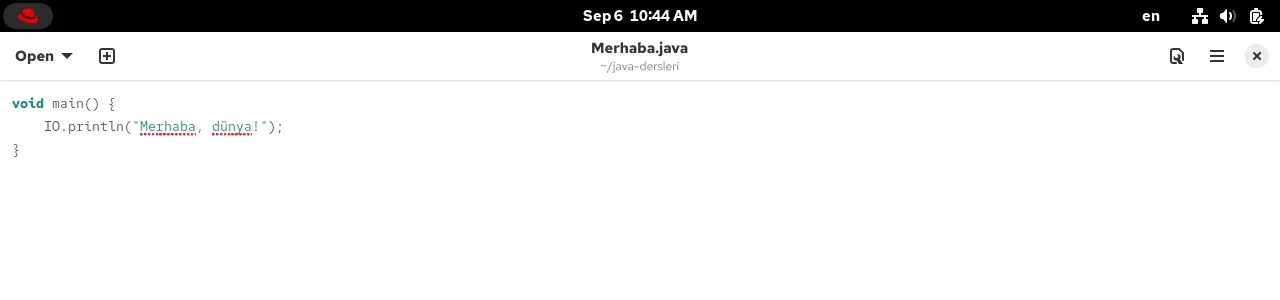
Line by line: what do these three lines say?
Short, but every word says something; remember the black box from the Functions post.
void main()defines a black box; its name ismain. Java’s rule: the program starts from the box calledmain. In part 1 we called it the “start here” sign.voidmeans “returns nothing”; a function without theRETURNline from the Functions post. The parentheses are empty: the box takes nothing from outside.{and}wrap the body of the box; the Java form of theFUNCTION ... ENDFUNCTIONpair in pseudocode. The lines inside are the work the box does.IO.println("Merhaba, dünya!");is the veryPRINT "Merhaba, dünya!"line from the Pseudocode post.IOis Java’s input/output box,printlnis “print and end the line”. What’s inside the quotes is a string; in the Variables post we called it the text type. The semicolon at the end is the sentence’s full stop: in Java every statement ends with one.- Indentation (the spaces at the start of the line) is not required by Java; it’s for your eyes. Make it a habit; it saves lives in hundred-line files later on.
Compile and run
In the terminal go into the java-dersleri folder (cd java-dersleri) and type two commands:
javac Merhaba.javajava Merhaba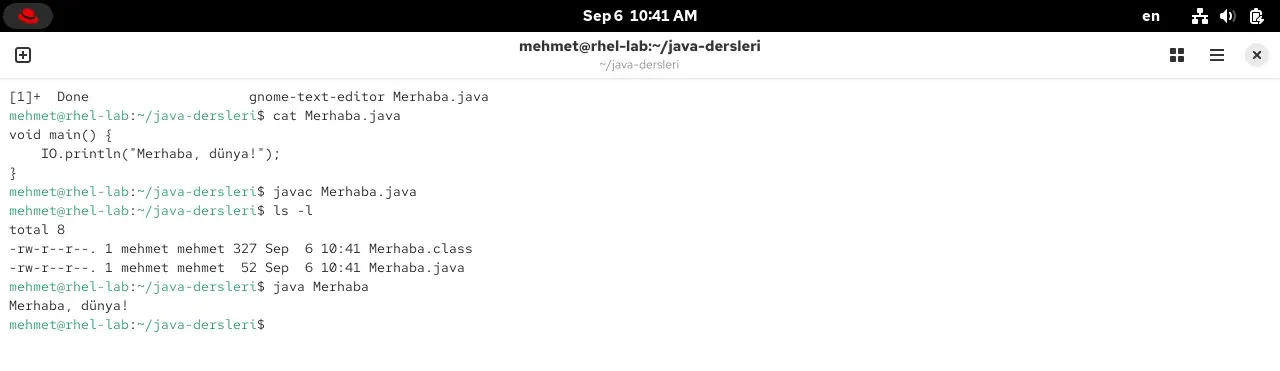
See? The first command printed nothing; in the Unix world silence means success. But when you look in the folder with ls there’s a new file: Merhaba.class, 327 bytes. The halfway language from part 1, bytecode; the shipping box javac produced from your 52-byte source code. The second command handed that box to the JVM, and the JVM did everything we toured in part 2: took it in at the door, checked it, put it on the desk, ran main and printed to the screen. Within milliseconds.
flowchart TD
    A["Merhaba.java<br/>the 3 lines you wrote"] -->|"javac Merhaba.java"| B["Merhaba.class<br/>bytecode, 327 bytes"]
    B -->|"java Merhaba"| C["JVM: load, verify, run"]
    C --> D["Screen: Merhaba, dünya!"]
Note: in the second command we typed java Merhaba, not java Merhaba.class. java is given a class name, not a file name; if you add the extension you get “Could not find or load main class Merhaba.class”. We’ll come back to that below.
In one step: java Merhaba.java
Since Java 11 there’s a shortcut for small programs: squeezing compile and run into a single command.
java Merhaba.java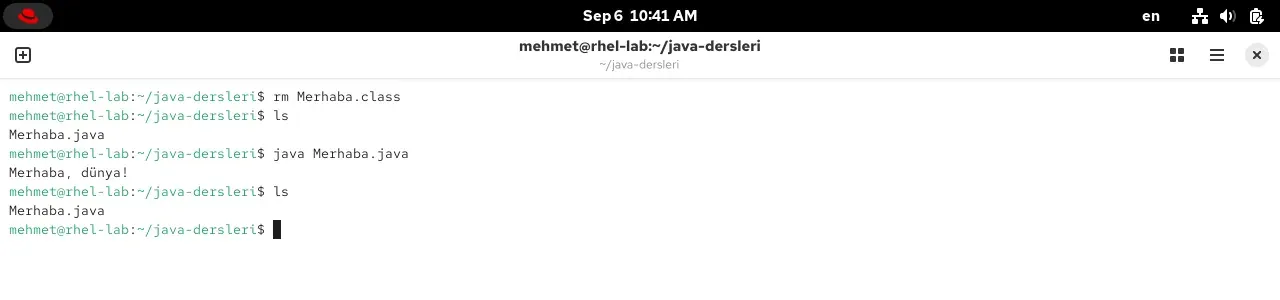
This time no .class file appeared on disk; java compiled in memory, ran it, forgot it. Great for experiments. But in real projects the two steps are always separate: you compile once, run many times, package the .class files and hand them to others. That’s why you need to know both.
The classic form: the version you’ll see on the internet
I promised in part 1: the “Hello, world” of internet examples, books, and Java 21 and earlier is a bit longer. Let’s write it too and run it the same way:
public class Klasik { public static void main(String[] args) { System.out.println("Merhaba, dünya!"); }}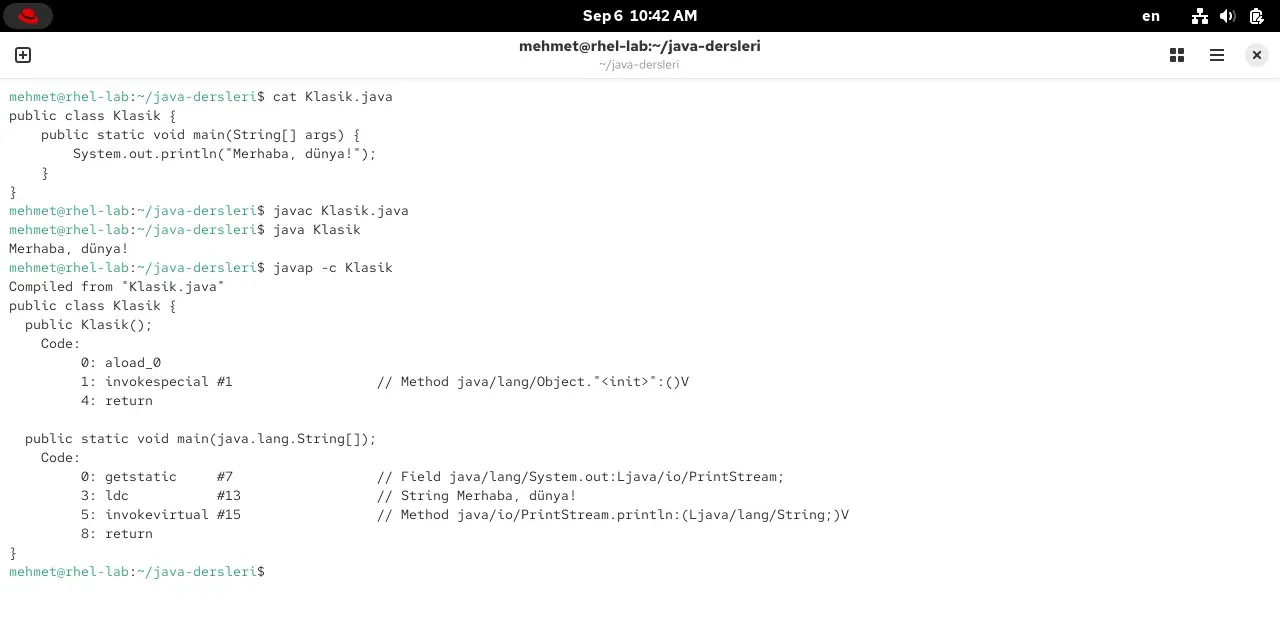
Each of the extra words has a meaning, but you don’t have to learn them all today: public class Klasik is “a publicly visible class called Klasik” (the cookie cutter from part 2), static is “can be called without cutting a cookie from the cutter”, String[] args is “words that can be handed to the program from outside”. Java 25 decided none of these are needed for a first program and made the short form standard; but the long form is valid too and runs everywhere. One rule differs: if you wrote public class Klasik, the file name must be Klasik.java. The short form has no such requirement.
Step 4: jshell, the playground
Opening a file and compiling for every little curiosity is tiring. There’s a tool inside the JDK for that: jshell, the interactive playground that came with Java 9 (2017). Type jshell in the terminal, write a line of Java, press Enter, see the result.
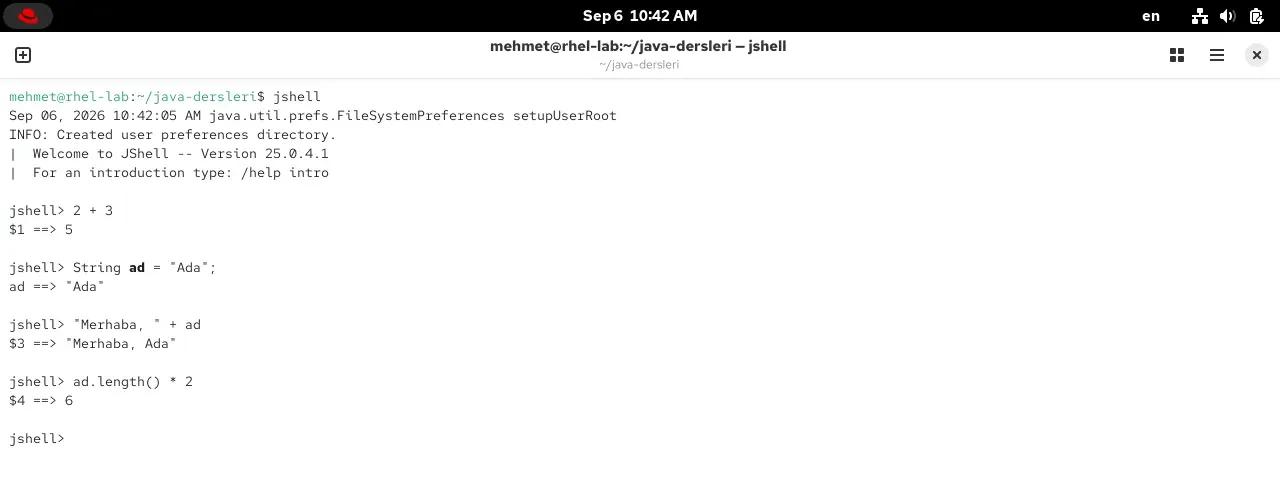
Try what’s on the screen yourself:
jshell> 2 + 3$1 ==> 5
jshell> String ad = "Ada";ad ==> "Ada"
jshell> "Merhaba, " + ad$3 ==> "Merhaba, Ada"
jshell> ad.length() * 2$4 ==> 6
jshell> /exit
Look at the second line: String ad = "Ada";. The mailbox from the Variables post, written in Java: the box’s type (String, text), its name (ad, “name” in Turkish), the value put inside ("Ada"). In pseudocode we wrote ad ← "Ada"; an equals sign instead of the arrow, and a type in front. The third line joins two strings with +; the fourth asks for the string’s length and multiplies it by a number. Everything we did on paper is alive here. You leave jshell with /exit; we’ll use it plenty in the next part.
Reading your first error messages
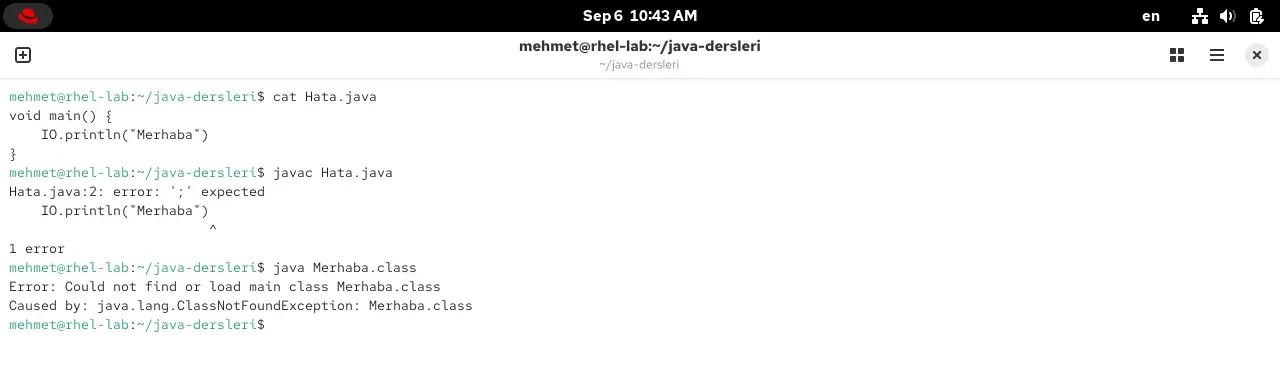
If you got no error while writing your first program, you’re either very careful or lucky; you’ll get one on the second. That’s fine. In the last post of the Algorithms series we said “an error message is not an enemy, it’s directions”; Java’s messages are a good example. I produced and read every one of the following with my own hands:
| Message | Meaning and fix |
|---|---|
error: ';' expected | No semicolon at the end of the line. Go to the line number in the message and put a ; where the ^ points. |
error: package system does not exist or cannot find symbol | Upper and lower case: system.out was written, it should be System.out. cannot find symbol usually means a misspelled name. |
error: ')' or ',' expected | You forgot to put the text in quotes: IO.println("Merhaba"), not IO.println(Merhaba). |
error: reached end of file while parsing | A closing curly brace } is missing; the file ended early. |
error: class Klasik is public, should be declared in a file named Klasik.java | In the classic form the class name and the file name must match. Rename the file or change the class name. |
Error: Could not find or load main class Merhaba.class | You typed java Merhaba.class; it should be java Merhaba. The same message appears if you’re in the wrong folder: cd into the folder that holds the .class file. |
error: unnamed classes are a preview feature | You tried to compile the short void main() form with Java 21. Either move to 25 or write the classic form. |
javac: command not found or 'javac' is not recognized | A PATH problem, or only the JRE is installed. See the “Trap” and “PATH” sections above; don’t forget to reopen the terminal. |
The recipe for reading a message is always the same: file name, colon, line number, colon, message. If it says Hata.java:2: error: ';' expected, look at line two; the ^ underneath shows the exact spot. Before pasting a message into Google, read it once yourself; most of the time the answer is inside.
Try it yourself
This part’s questions are for the keyboard, not pen and paper. But answer each one in your head first, then try; if the guess doesn’t match, that’s where the real learning starts.
Question 1 — Two lines (easy)
Add a second line
IO.println("Nasılsın?");toMerhaba.java. Before compiling and running, guess: does the output appear on one line or two? And if you writeprintln?
Question 2 — Delete the full stop (easy)
Delete the semicolon, run
javac Merhaba.javaand read the error message out loud: file, line, message, marker. Then put it back. This two-minute exercise saves hours later.
Question 3 — The file name (medium)
Save the short version as
merhaba.java(lowercase m) and run it withjava merhaba.java. Does it work? Try the same by turningKlasik.javaintoklasik.java. Does that work too? Why the difference?
Question 4 — Division in jshell (medium)
Open jshell and type these two:
7 / 2and7.0 / 2. The results differ. Explain why, remembering the distinction between whole numbers and decimals from the Variables post.
Question 5 — Which Java? (medium)
A colleague at work says “we use Java 21 on the project, you installed 25, is that a problem?”. What do you answer? Can both live on your computer?
Summing up
No theory today, just work: you installed Java, wrote your first program, compiled it, ran it, broke it and fixed it. Put the list below in your pocket; we’ll use all of it in the coming parts.
Sources
- Eclipse Temurin downloads and the Adoptium installation guide.
- Red Hat build of OpenJDK: RHEL packages and portable archives; there are builds for Windows too.
- The OpenJDK project and the JDK 25 release page.
- The features in this post: JEP 512, compact source files and
void main(), JEP 330, launching single-file programs withjava, JEP 222, jshell. - dev.java: Oracle’s free learning site; its “Getting Started” section is the official counterpart of this post.
- SDKMAN: managing several JDKs on Linux and macOS.
- The Homebrew temurin@25 and winget documentation.
- The history of the “Hello, World!” program: Kernighan, 1972.
- Screenshots: from the author’s RHEL 10.2 virtual machine inside VirtualBox (Red Hat build of OpenJDK 25.0.4.1); the portable archive test on the author’s own Linux.
Related posts
Frequently asked questions
What is the difference between the JDK and the JRE, and which one should I install?
The JRE (Java Runtime Environment) only runs finished Java programs: it contains the JVM and the core libraries. The JDK (Java Development Kit) adds the tools you need to write programs on top of the JRE: the javac compiler, the jshell playground, the javap bytecode reader and more. If you are going to write programs you need the JDK. Since Java 11 most distributions do not ship a separate JRE anyway; you install the JDK and the runtime comes with it.
Which Java version should I install?
Java 25. Java releases a new version every March and September, but only the ones released every two years get long-term support (LTS: 17, 21, 25, next 29). 25 is the current LTS, released in September 2025, and it is the version we use throughout this series. If your computer has 21, that will do too; the only difference is that the short void main() form you saw in part 1 does not work on 21.
Oracle JDK or OpenJDK? Is Java free?
There is one source code for Java: OpenJDK. Oracle, Eclipse (Temurin), Red Hat, Amazon (Corretto), Azul and Microsoft build their own distributions from that same source; all of them pass the same compatibility tests and all of them are free. Oracle JDK has been free too since 17 (the NFTC licence), with paid options for companies that want support contracts. For a beginner the most practical choice is Eclipse Temurin on Windows and macOS and the package manager of your distribution on Linux.
What is PATH and why does it matter?
When you type javac in a terminal, the operating system has to know where to look for that program. PATH is the ordered list of folders it searches. The installer adds the bin folder of the JDK to that list; if it does not, typing javac gives you command not found or is not recognized. On Windows the Temurin installer does this for you; on macOS and Linux the package manager takes care of it.
javac says command not found or is not recognized. What should I do?
There are three usual causes. First, you did not reopen the terminal after installing; the PATH change only applies to newly opened windows. Second, only the runtime package was installed: on Fedora and RHEL the java-25-openjdk package does not contain javac, you need java-25-openjdk-devel; on Debian and Ubuntu install openjdk-25-jdk rather than openjdk-25-jre. Third, it really is not on PATH; use which java (Linux, macOS) or where java (Windows) to see where it is.
java -version shows an old version. Why?
You have more than one Java on the machine and the old one is found first on PATH. On macOS /usr/libexec/java_home -V lists the installed versions; on Linux, Fedora and RHEL let you choose with alternatives --config java, Debian and Ubuntu with update-alternatives --config java. On Windows look at the order in the Environment Variables window and move the bin folder of the new JDK to the top.
What is the Merhaba.class file, and what happens if I delete it?
It is the bytecode file produced by javac; the halfway language we described in part 1. The java Merhaba command runs this file. If you delete it you lose nothing, your source code is still in Merhaba.java; running javac again recreates it. In projects .class files are never shared anyway, only the .java files are kept.
What is the difference between java Merhaba.java and the javac plus java pair?
java Merhaba.java (since Java 11) compiles in memory and runs immediately, leaving no .class file on disk; ideal for small experiments. The javac and java pair separates compiling from running: a .class file is produced, you compile once and run many times, and you can hand the file to someone else. In real projects the compile step is always separate; later on, tools like Maven and Gradle take over that job.
What is jshell for?
It is the interactive playground that came with Java 9. Without creating a file or writing main, you type one-line Java expressions and see the result at once: type 2 + 3 and 5 comes back. It is perfect for quickly trying what a method does, recalling a piece of syntax, or simply playing while you learn. It opens when you type jshell in the terminal and closes with /exit.
Do I need an IDE (IntelliJ, VS Code) to write programs? Which one should I use?
Not yet, and deliberately so. Writing the first programs with a plain text editor and a terminal lets you see what javac and java really do; an IDE hides those steps. A few parts from now, once the programs grow, we will move to an IDE. Which one is entirely up to you: IntelliJ IDEA (the Community edition is free), Visual Studio Code, Eclipse and NetBeans all write Java and all are free. I may show one in the examples, but you can use whichever you are used to or curious about; the .java file you produce is the same in all of them.